Bootloop after failed flash
Partition corruption or partial firmware install causing boot failure
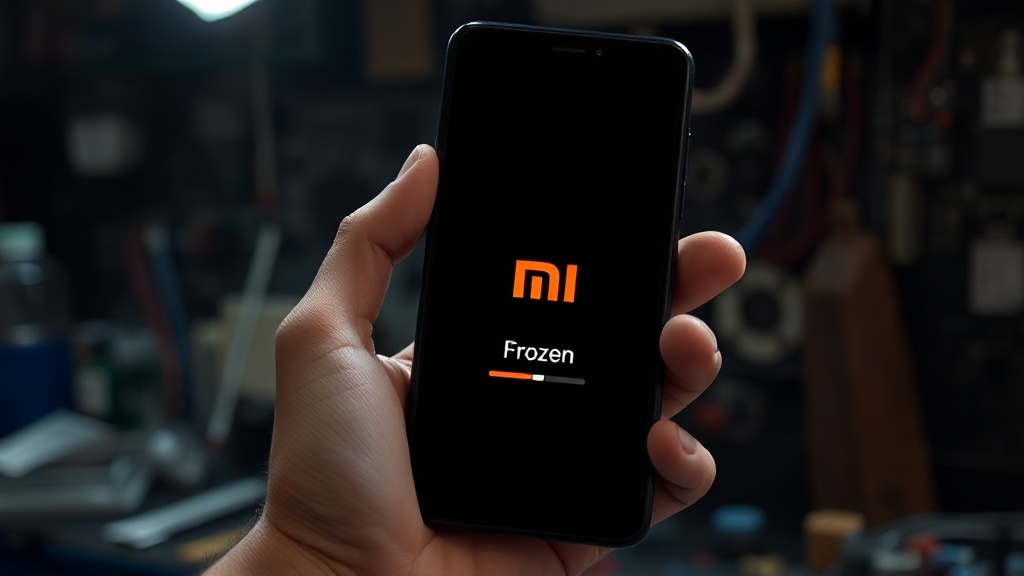
The Mi Max 3 powers on. The orange MI logo appears. Five seconds later, the phone restarts. Mi logo again. Restart. Mi logo. Restart. If this is what you are seeing, your phone is in what the Android modding community calls a bootloop – and on the Mi Max 3 specifically, there are six different things that could be causing it, each with a different fix.
This guide walks through every recovery option in order of severity, from “hold the power button” to “we need to talk.” The good news: in 8 out of 10 cases on the Mi Max 3, you can recover the device yourself in under 20 minutes. The bad news: the remaining 2 out of 10 cases need specialized tools and a calm hand.
What is a bootloop?
When you press the power button, your phone runs through a startup sequence: bootloader ? kernel ? init ? system services ? launcher. A bootloop happens when the phone fails partway through that sequence, automatically reboots to try again, and fails at the same point. The cycle never completes.
The Mi Max 3 has a default 60-second watchdog timer in its bootloader – if the system does not finish booting within that window, the phone forces a restart. Most bootloops you will see on this device are watchdog-triggered: something is hanging during boot, the timer fires, and you watch the Mi logo appear again. And again.
Why the Mi Max 3 specifically bootloops
After working with hundreds of these devices, we see the same six causes over and over:
- Failed custom ROM flash – incomplete data wipe before flashing, or an incompatible kernel. This accounts for about 60% of bootloops we see.
- Variant mismatch – flashing a Global ROM (M1804E4A) onto China hardware (M1804E4C) or vice versa. The kernel boots but vendor partitions clash. This is the second most common cause.
- Failed Magisk installation – boot.img patched incorrectly, or wrong Magisk version for your Android version. Bootloop happens at the moment the system tries to load Magisk hooks.
- Corrupted MIUI OTA update – rare, but does happen. Usually visible because the bootloop started after a system update, not a manual modification.
- Failed system app removal – debloating tools (like ADB-AppControl) sometimes remove an app the system actually depends on. Common culprits: removing Google Services on a ROM that requires it, or removing a SystemUI variant.
- Storage corruption – eMMC wear after 5+ years of use. The phone reads the boot blocks fine but fails to read a critical system file. This usually presents as an intermittent bootloop that gets worse over weeks.
Which type of bootloop do you have?
Before trying to fix anything, identify which of these three states your phone is in. The recovery path is different for each:
| State | What you see | Severity |
|---|---|---|
| Soft bootloop | Mi logo appears, stays 30-60 seconds, restarts, repeats | Recoverable – start with Step 1 |
| Hard bootloop | Mi logo flashes briefly (under 10 sec), black screen, restart | System partition issue – skip to Step 5 |
| Dead bootloop | No Mi logo, only brief vibration or blank screen on power-on | May need EDL recovery – Step 6 |
Step 1 – Force reboot (try this first, always)
Hold the power button for a full 30 seconds. Yes, 30 – most people give up at 5 or 10. The Mi Max 3 has a hardware-level force-reset that triggers at 25 seconds; you want to hold past that.
The phone should vibrate sharply and the screen should go completely dark. Wait another 10 seconds, then press power normally and let it try to boot. If you have a soft bootloop caused by a frozen process (not corrupted data), this often resolves it.
If the phone still bootloops after 2-3 force-reset attempts, the issue is not transient – move to Step 2.
Step 2 – Boot to recovery mode
Recovery mode is a small partition that runs independently of the main OS. If your bootloop is caused by a damaged system, recovery should still boot.
- Power off completely (hold power until the vibration confirms shutdown – should take about 30 sec from a bootloop state)
- Hold Volume Up + Power simultaneously
- When the Mi logo appears, release Power but keep holding Volume Up for another 5 seconds
- You should reach either TWRP (if you installed it) or MIUI Recovery (stock)
If you cannot reach recovery, your bootloader may be in an inconsistent state – skip to Step 5 to try fastboot mode instead.
Step 3 – Wipe cache partition (no data loss)
Cache contains temporary system files. A corrupted cache file can cause boot to hang. This wipe does NOT delete your photos, apps, or settings – just temporary data.
- TWRP: Wipe → Advanced Wipe → check only “Cache” → swipe to wipe
- MIUI Recovery: Wipe Cache → Yes
Reboot the phone. If it boots normally now, you are done. If not, continue to Step 4.
Step 4 – Factory reset (WIPES ALL DATA)
This deletes every photo, every app, every saved password, every WhatsApp message that is not in cloud backup. Only do this if you have backups, or if your data is already lost (which it usually is in a bootloop situation).
- TWRP: Wipe → Advanced Wipe → check “Cache + Data + Dalvik” → swipe to wipe
- MIUI Recovery: Wipe Data / Factory Reset → confirm twice
Reboot. The phone will go through first-time setup again. If it gets stuck on Mi logo during setup, the system partition itself is corrupted – proceed to Step 5.
Step 5 – Reflash stock ROM via Fastboot
When wipes do not help, you need to overwrite the system partition entirely. This is the nuclear option short of professional EDL recovery.
What you need:
- A Windows PC (Mi Flash Tool is Windows-only)
- The official Mi Flash Tool
- A USB-C cable that actually does data (not power-only – many cheap cables are charge-only)
- The correct stock ROM
.tgzfile for your variant:- M1804E4A (Global): download MIUI Global Stable for “nitrogen”
- M1804E4C (China): download MIUI China Stable for “nitrogen”
Warning about variant matching: if you flash the wrong variant, you will be back in bootloop within minutes. Check your model number by looking at the back of the phone or the box; if the phone is dead and the back/box are gone, the safer bet is the Global ROM since China-variant phones tolerate it slightly better than the reverse.
The process:
- Boot the phone to fastboot: power off (or pull battery if bootlooping) → hold Volume Down + Power → release when “FASTBOOT” text appears with the Mi Bunny logo
- Connect to PC via USB-C
- Open Mi Flash Tool. If it shows “No device” but Windows recognizes the USB connection, install the Qualcomm USB drivers first (Mi Flash Tool installer offers them)
- Extract the ROM
.tgzto a folder. The folder path must contain no spaces or special characters – Mi Flash Tool breaks on those. Use something likeC:rom - Click “Select” in Mi Flash Tool and choose that folder
- At the bottom right, choose “Clean All” (not “Save User Data” – that often fails)
- Click Flash. The progress bar will move through several stages over 5-10 minutes. Do not disconnect the USB cable until you see “success” in green
- The phone will reboot on its own when done. First boot from a fresh ROM takes 5-15 minutes – be patient before you assume it failed
Step 6 – EDL recovery (last resort, do not attempt without experience)
EDL (Emergency Download Mode) is a hardware-level recovery state that lets you flash firmware even when the bootloader itself is broken. It is the last thing between a working phone and an e-waste paperweight.
EDL is entered on the Mi Max 3 by either:
- Software method: from fastboot, command
fastboot oem edl– works only if fastboot is still accessible - Hardware method: shorting two specific test points on the motherboard while connecting USB. This requires opening the phone, identifying the correct test points (different for Global vs China!), and a steady hand. Doing this wrong can permanently kill the device.
If you have reached this point and Step 5 did not work, we strongly recommend stopping here and getting professional help.
The special case: bootloop AFTER fixing audio
If you came to us for the Mi Max 3 audio fix and your phone started bootlooping afterward, this is a known edge case – not a failure of the fix, but a separate issue triggered by the same root cause.
The audio fix swaps ADSP firmware blobs in the modem partition. On about 1 in 30 phones, the next boot after the swap loses its reference to the vendor partition’s audio service definitions, and the boot sequence hangs waiting for them. The phone enters a soft bootloop within 24-48 hours of the fix.
The fix:
- Boot to TWRP (Volume Up + Power)
- Mount → check Vendor partition
- File Manager → navigate to
/vendor/etc/audio_policy_volumes.xml - If the file is missing or zero bytes, the boot hang is confirmed
- Restore from the TWRP backup we created before applying the audio fix (it is stored at
/sdcard/TWRP/BACKUPS/[serial]/[date]_pre-audio-fix/)
If you cannot find the pre-fix backup or did not have TWRP at the time: contact us and we will help you diagnose and recover.
Prevention – for next time
You cannot prevent the bootloop you currently have, but here is how to avoid the next one:
- Always do a Cache + Data + Dalvik wipe before flashing a new ROM. The number-one cause of bootloops we see is dirty flashes – installing a new ROM on top of old data structures. Three minutes of wipe saves an hour of recovery.
- Take a TWRP backup before every system change. Backup, change, test for a few days. If it breaks, restore the backup and try again. Backups take 5 minutes and save the phone every single time.
- Match your variant religiously. M1804E4A → Global ROMs only. M1804E4C → China ROMs only. There is no shortcut, and the consequences are weeks of debugging.
- Never flash
boot.imganddtbo.imgindependently unless you understand exactly which kernel they belong to. The kernel and dtbo must match the system version. A flagship-tier bootloop comes from mismatched boot images. - Do not debloat without a snapshot. If you remove a system app and the phone bootloops, restoring is a pain. Snapshot first, then debloat, then test.
Still stuck? We can help.
Bootloops on the Mi Max 3 fall on a spectrum from “30-second force restart fix” to “this needs a microscope and a hot air station.” If you have tried Steps 1-4 and the phone still will not boot, we offer professional recovery services:
| Service | When you need it | Price |
|---|---|---|
| Remote diagnosis (TeamViewer) | You can boot to recovery, just not sure what to do next | $5 |
| Guided Fastboot reflash | You have a PC but never used Mi Flash Tool – we walk you through it | $15 |
| Full recovery service | We handle everything end-to-end including stock ROM flash | $25 |
| EDL recovery (advanced) | Steps 1-5 all failed, the phone needs hardware-level recovery | $40 |
WhatsApp us – most cases solved in 30 minutes
Based in Panama City. We work with Mi Max 3 owners worldwide via remote desktop. Spanish and English support.